Revised for EmDash 1.1.0 on 6 October 2026. Every option retested with the blog template for Cloudflare, this site's local database and an empty D1 database on Cloudflare. What changed is listed at the end of the article.
You've probably wondered how to back up EmDash, because it needs backups just like any other site. An update that goes wrong, an import that overwrites more than you expected, or a post someone deletes by accident: sooner or later you'll want an earlier state back. Cloudflare makes that easier than your own server does: the database backs itself up, the storage for your images is already there, and every Worker comes with a schedule for recurring tasks. That's exactly what the backup feature I built into EmDash in July is based on (PR #1890).
On its own, though, that feature isn't enough, and it isn't the only option either. For this article I tried every option with this site's database and a throwaway database on Cloudflare. You'll find out what each one backs up, what you get back when things go wrong, and what I'd set up for a small site. If you don't have an EmDash site yet, start with getting started with EmDash.
How WordPress does it
WordPress itself has no backup feature. Under Tools → Export you do get an XML file with posts, pages, comments, custom fields, categories and menus (docs on exporting), but without the image files, plugins, themes and settings. That's why the WordPress guide recommends backing up the database and the files separately, keeping several copies in different places and using a plugin to automate it.
If WordPress or another CMS runs on your own server, all of that is on you or your host. Someone has to set up the database dump, copy the files, get both to a second place and every now and then check whether the whole thing can actually be restored. That last step tends to slip in everyday life, and you only notice when you really need the backup.
With EmDash on Cloudflare, a big part of that work goes away. You only have to switch on the backups in the admin. The D1 database backs itself up continuously anyway: with Time Travel you reset it to any minute of the last 30 days, without a cron job and without storage you have to look after. On your own server you'd have to build something like that from the database logs yourself. And the images sit in R2, spread across several data centers. Cloudflare designs R2 for 99.999999999 percent annual durability (docs on durability). The one failed hard drive that takes the uploads with it on a small server is no longer your worry.
Two risks stay with you all the same. The best durability doesn't protect against deletion, whether you did it yourself or someone with access to your account. Cloudflare says so in the same docs. And with this setup, everything sits with one provider. If your account is suspended or deleted, the database, the images and Time Travel disappear together. A copy outside Cloudflare is worth having here too, and further down I show you which option suits that.
What your site is made of
With WordPress you back up two things, the database and the files. An EmDash site on Cloudflare is spread over four places. The D1 database holds posts, pages, revisions, menus, users, settings and plugin data. Images and other media files live in R2, Cloudflare's storage, and the database only records which ones exist. The code with the template, the configuration and your own components lives in your project and is already safe in Git.
The fourth place is easy to forget: the EMDASH_ENCRYPTION_KEY, if you've set one. EmDash uses it to encrypt secret plugin settings, an API key for example. It's stored as a secret on Cloudflare and isn't in any of the backups this article covers.
No option covers all four places. That's why it pays to look at them one by one.
Option 1: The built-in backup in the admin
You'll find it under Settings → Backups. You don't need a plugin for it. Restoring the file is deliberately not possible yet: a restore overwrites data, and for that there should first be a well thought-out path through the CLI (Discussion #142). For emergencies, that's what option 2 is for.
At the top, "Download backup" saves a backup straight to your machine. Below that you switch on automatic backups.
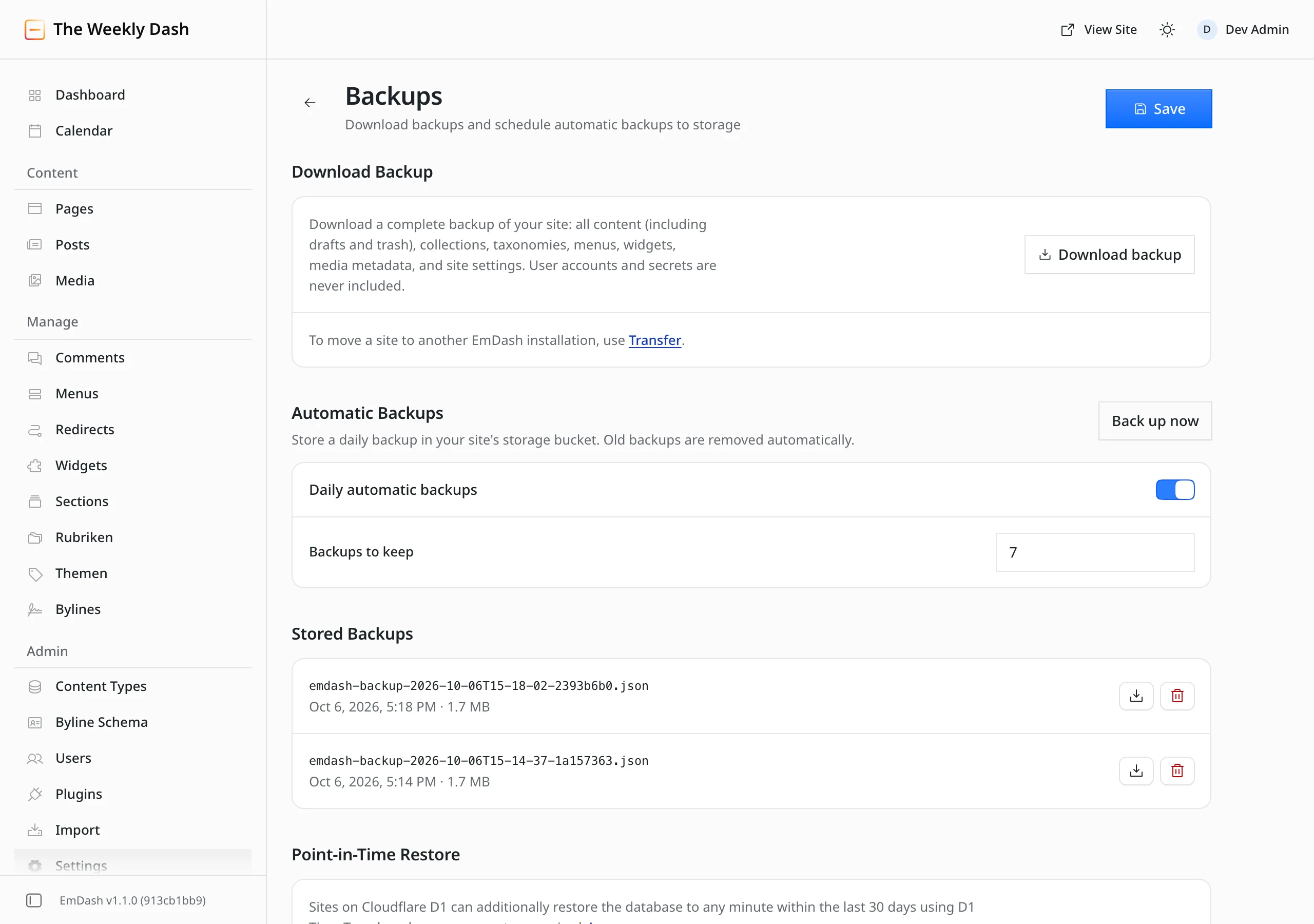
With daily backups switched on, EmDash stores a backup in your media bucket once a day, in the backups/ folder. You choose how many to keep, between 1 and 30, the default is 7, and EmDash clears out the older ones by itself. The backup runs with the same maintenance tasks that publish scheduled posts, and for that it needs a cron trigger on the Worker. The blog template already has one in wrangler.jsonc, so there's nothing to set up. Only administrators can see and use the page.
I looked at what's inside such a file using this site's local database. The backup was 1.7 MB and done after 112 milliseconds. It holds 16 tables with every post and page including drafts and trash, the content types and fields, categories and tags, menus, widgets, SEO data, media metadata and the site settings. Most of the size comes from the revisions, 41 of them, together 1.6 MB.
What's missing matters at least as much. I deliberately left out users, passkeys, API tokens and anything secret, because the file can end up on your machine, in an email or in a shared folder. Also not included are comments, redirects and bylines, plugin data and settings, and the media files themselves. The file is readable JSON and works well for your own analysis or as an archive of how a post looked months ago. Because it can't be restored, though, I wouldn't rely on it before an update or a large import.
One more note in case you've made your bucket public through a domain of its own. The backups sit in the same bucket as your images. EmDash itself refuses every request for the backups/ folder, but through a public bucket address the files would be reachable if someone guessed the name. That's why EmDash adds a random part to every name. If you serve your images through EmDash, as the template does, this doesn't affect you.
Option 2: D1 Time Travel
When things go wrong, this is the backup that saves you, and the nice part is that you don't have to do anything for it. Cloudflare records what every D1 database looked like at every point in time and resets it on request to any minute of the last 30 days, or the last 7 days on the free Workers plan (docs on Time Travel). It costs nothing extra.
Time Travel covers the whole database, including users, comments and plugin data. Before you do anything risky, like an EmDash update or a large import, it's worth noting the current state. You'll find your database's name in wrangler.jsonc under database_name:
npx wrangler d1 time-travel info YOUR-DATABASEWrangler replies with a so-called bookmark, along with the command that takes you right back to it. Instead of a bookmark you can also give a point in time:
npx wrangler d1 time-travel restore YOUR-DATABASE --timestamp=2026-10-01T09:00:00+02:00Be careful with this command, because it overwrites the database completely. Everything added since the chosen moment is gone afterwards, including a comment from this morning. At least Wrangler hands you a new bookmark along the way, which lets you undo the restore.
Time Travel has two limits. It doesn't reach back further than 30 days, and it only looks after the database. An image you deleted in R2 won't come back with it.
Option 3: The site package
Under Settings → Transfer you export the whole site into a file ending in .emdash. The package is meant for moving to another EmDash installation, even one with a different database. It's still interesting for backups, because it's the only option that includes the images.
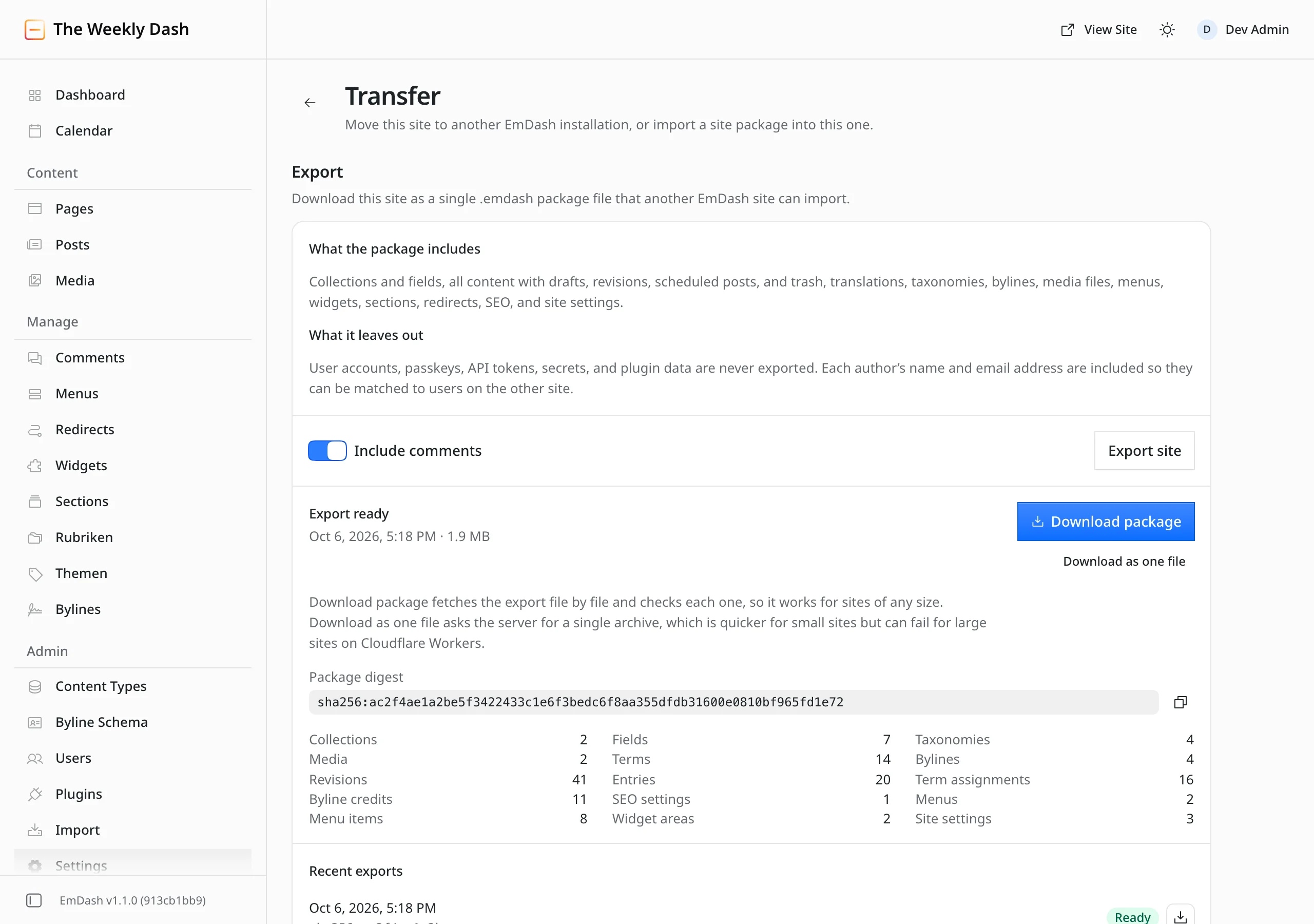
For me the export was done in just over a second. The package was 1.9 MB and consisted of 20 files. It held the content with every revision and translation, categories, bylines, menus and redirects, the comments if you want them, and the site's two images as real files. User accounts, passkeys, API tokens and plugin data stay out. Each author's name and email address, on the other hand, go in, so you can match them up on the new site. So treat the file as carefully as a database backup.
For larger sites, use "Download package". The browser then fetches the files one by one and checks each of them. "Download as one file" is quicker, but the admin warns it can fail for large sites on Cloudflare. An export stays available on the server for seven days (docs on site transfer), so download it right away and keep it somewhere outside Cloudflare. If you prefer the terminal, the CLI does the same:
npx emdash login --url https://your-site.com
npx emdash site export --url https://your-site.com --output site.emdash
The package has one drawback. It can only be imported into a site with no content of its own, and my existing site promptly refused the import and listed what stood in the way. In an emergency you set up a new EmDash site, import the package and invite the users again. That's more work than a restore, but it still works when Time Travel no longer reaches back far enough.
Option 4: A SQL dump with Wrangler
If you want your database complete and outside Cloudflare, wrangler d1 export is the tool. With an EmDash database, though, the plain command fails:

Search is to blame. For every content type with search switched on, EmDash creates an index as a so-called virtual table, and D1 can't export those (docs on export). That's why I described a workaround in EmDash's backup docs (PR #3876): you export all the other tables individually and split them over four files. EmDash rebuilds the search index by itself afterwards.
With the local database, this export took 7 seconds across 72 tables and produced four files totalling 1.8 MB. They loaded into a plain SQLite file in under a second, with all 11 posts, 41 revisions, the user and the 90 migrations. As a complete copy you can open and search on your own machine, the dump works perfectly.
The sobering part was the way back into D1, and for me in particular, because I had tested the recipe with the demo site, whose posts are short. With this site's data, the dump wouldn't load, neither locally nor into an empty database on Cloudflare. Tables, indexes and triggers arrived, the file with the content stopped with statement too long, and what remained was a database without a single post, user or migration. D1 allows at most 100 KB per SQL statement (D1 limits), and our guide for agencies, at around 3,400 words, produced statements of 113 KB including its revisions. If you write long articles, the dump is a good emergency copy outside Cloudflare, but not a way to bring the site back with one command. That limit belongs in the docs, and that's what I'm taking care of next.
What about the images?
Time Travel only covers D1, and neither the built-in backup nor the dump contains the files. For the images you have two ways: the site package from option 3 or a copy of the whole bucket. Because R2 speaks the same interface as Amazon S3, the AWS command line works for that, for example:
aws s3 sync s3://YOUR-BUCKET ./media-backup --endpoint-url https://YOUR-ACCOUNT-ID.r2.cloudflarestorage.comFor this you create an API token for R2 in the Cloudflare dashboard, ideally with read access only. The copy also includes the automatic backups from the backups/ folder, by the way.
The key no backup contains
If you've set EMDASH_ENCRYPTION_KEY because a plugin stores a password or an API key, for example, it also belongs in your password manager. It's not in the database, nor in Time Travel, a dump or a package. Without it, EmDash can no longer read your plugins' stored secrets after a restore, and you get to enter every key again.
The options compared
Option | What's in it | How far back | Restoring |
|---|---|---|---|
Built-in backup | Content, revisions, structure, settings. No users, comments, plugins, images | 1 to 30 daily copies | Not possible |
D1 Time Travel | The whole database, including users and plugins. No images | 30 days, 7 on the free plan | One command, overwrites everything |
Site package | Content, comments, redirects and images. No users, plugins | As long as you keep the file | Only into a new, empty site |
SQL dump | The whole database without the search index. No images | As long as you keep the file | Into SQLite yes, into D1 not with long posts |
What I'd set up for a small site
Time Travel is already running for you, you just need to know about it. Make it a habit to note the bookmark with npx wrangler d1 time-travel info before every update and every larger import. It's a single command and saves you hunting for the right moment when things go wrong.
I'd switch on the daily backups in the admin despite their limits. They cost nothing and still show you how a post once looked after more than 30 days. As your only backup, though, they're not enough.
The most important one, to me, is the site package. Download it once a month and keep it outside Cloudflare, on your machine or in another cloud storage. It's the only backup that holds content and images together, and it gets you back on your feet even after a suspended account or a mistake six weeks ago. And if you use EMDASH_ENCRYPTION_KEY, the key belongs in your password manager.
If you want to be more thorough, add a regular copy of the bucket and a SQL dump; both are easy to automate with a script. For most small sites, though, the three habits above are plenty.
What about you?
How do you back up your EmDash site? And have you ever had to restore something, with Time Travel, a package or a solution of your own? Tell me in the comments. I'll add what you report to the article.
Changes to this article
- : Revised and every option retested, with measurements on this site's local database and an empty D1 database on Cloudflare.

Comments
No comments yet
First-time comments appear once we've approved them. How we handle your details