Kevin's getting-started article stops right where it gets interesting. You've created your own content type in the admin, and Kevin points out that a new collection only shows up on the site once the template has a page for it, which is where code comes in. So how much code is that, and what do you need to watch out for?
Less than you might fear. In this article I build one small project end to end: an events content type, two events in it, an overview page listing everything coming up, a detail page for each event and a link in the menu. At the end I'll walk you through the order in which you ship all of this to a site that's already live.
I went through every step with EmDash 1.1.0 on a fresh blog template, the Node version that npm create emdash@latest sets up. The code in this article is exactly what ran on my machine, and the screenshots come from that local site. The Cloudflare version of the template ships the same pages and layout, but I haven't run the code there.
Create the content type
In the admin, go to Content Types and click New Content Type. Enter "Event" as the singular label and "Events" as the plural. These labels are what your editors see, and you can change them whenever you like.
The slug below them is worth a second look. The admin suggests one based on the plural label, so you get events here. It ends up in every query in your code and in the database, and the admin won't let you rename it later. The reasons are in my article on the EmDash admin day to day, so pick the slug now and keep it short.
Two settings matter for this project. Routable is already on, which means every event needs a slug before it can be published. We'll need that slug for the detail page's URL in a moment. In URL Pattern, enter /events/{slug}. That tells the admin where an event lives on the site, and the Live View button in the editor will take you straight there later. Under Features, Drafts and Revisions are already ticked, which is fine. If you like, set the icon to calendar-blank to give the sidebar entry a calendar.
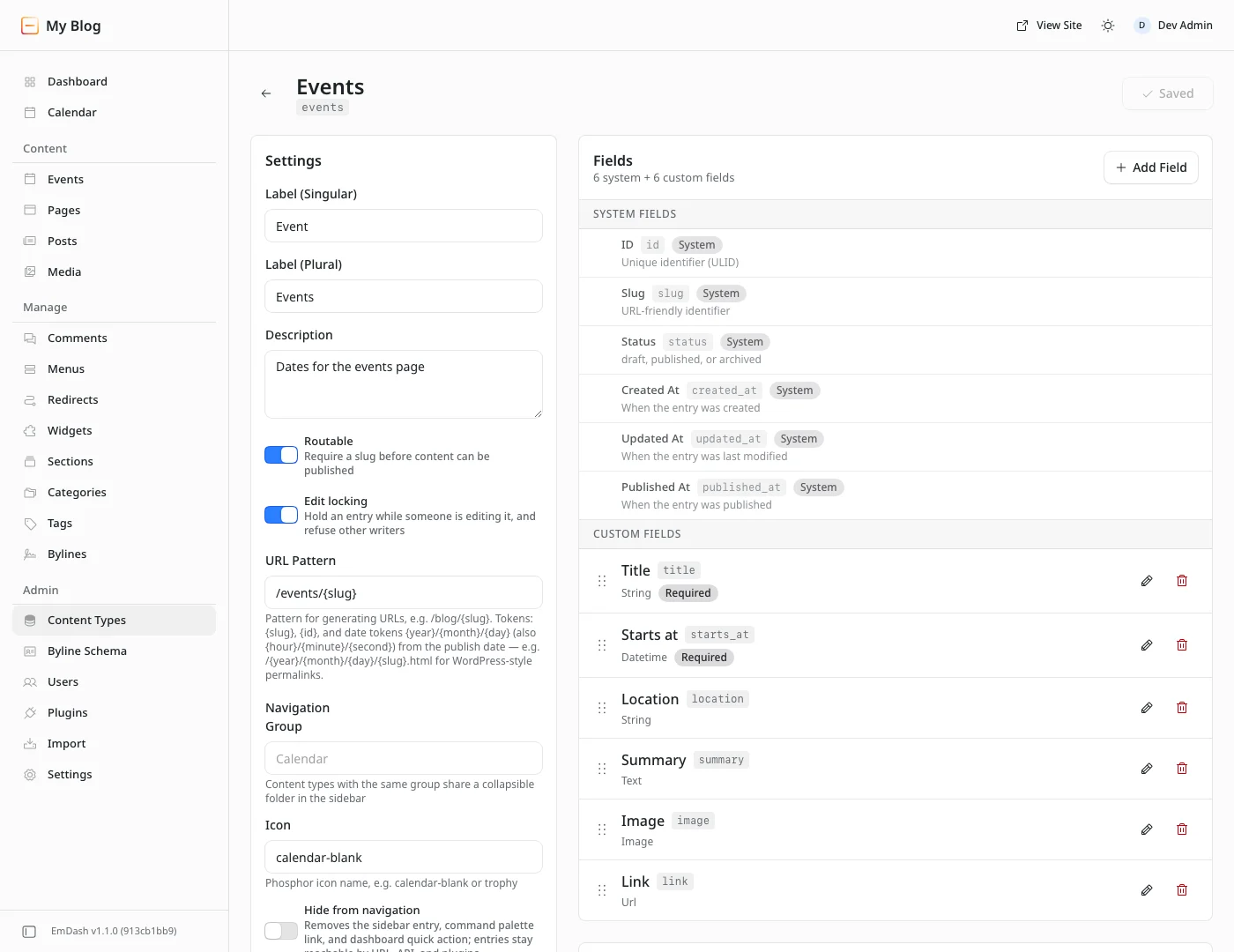
Once you click Create Content Type, you land on the new type's page. On the right you'll see six system fields such as ID, Slug and Status, but no fields of your own yet. EmDash doesn't even add a title for you.
Six fields for an event
You add fields one at a time with Add Field. These are the six I picked for an event:
Label | Slug | Field type | Switches |
|---|---|---|---|
Title |
| Short Text | Required |
Starts at |
| Date & Time | Required, Indexed |
Location |
| Short Text | |
Summary |
| Long Text | |
Image |
| Image | |
Link |
| URL |
The dialog suggests a slug from the label again. Check it against the table, because these exact names are what the code will ask for. A field's slug and type are fixed once it exists, so think both through before you click. The rest of what that means is in the admin article.
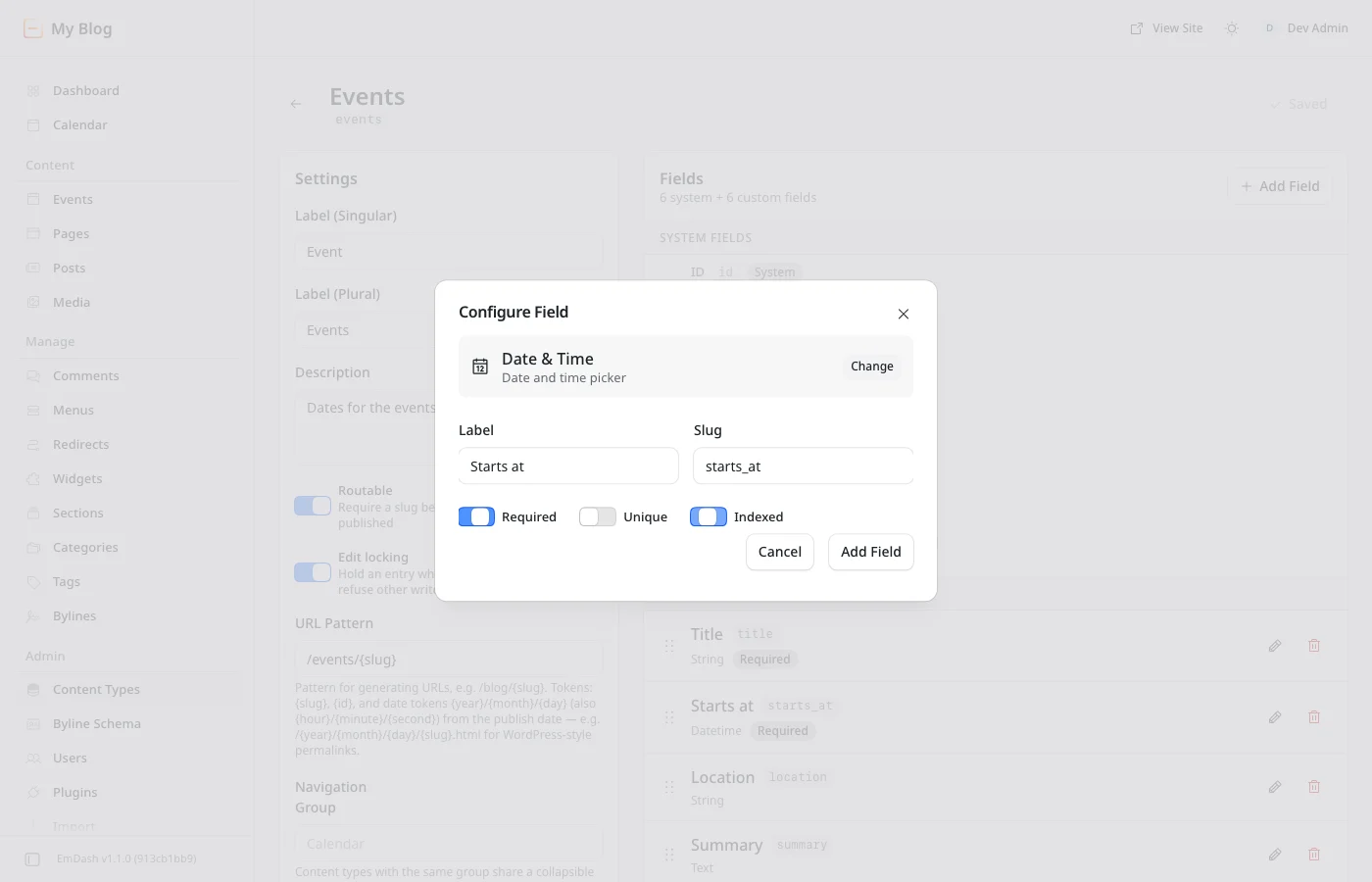
On Starts at I turn on Indexed. The overview page sorts and filters by this field, and that's exactly the case the docs recommend an index for. A field you only display doesn't need one.
Before you enter your first event, check the Timezone under Settings → General. A Date & Time field stores an instant in UTC. Whatever your editors pick in the date picker gets converted using this timezone, and on a fresh install it's set to UTC. I switched mine to Europe/Berlin. After that, 6:00 PM in the editor became 2026-11-12T17:00:00.000Z in the database, and the site shows 6:00 PM again.
Add two events
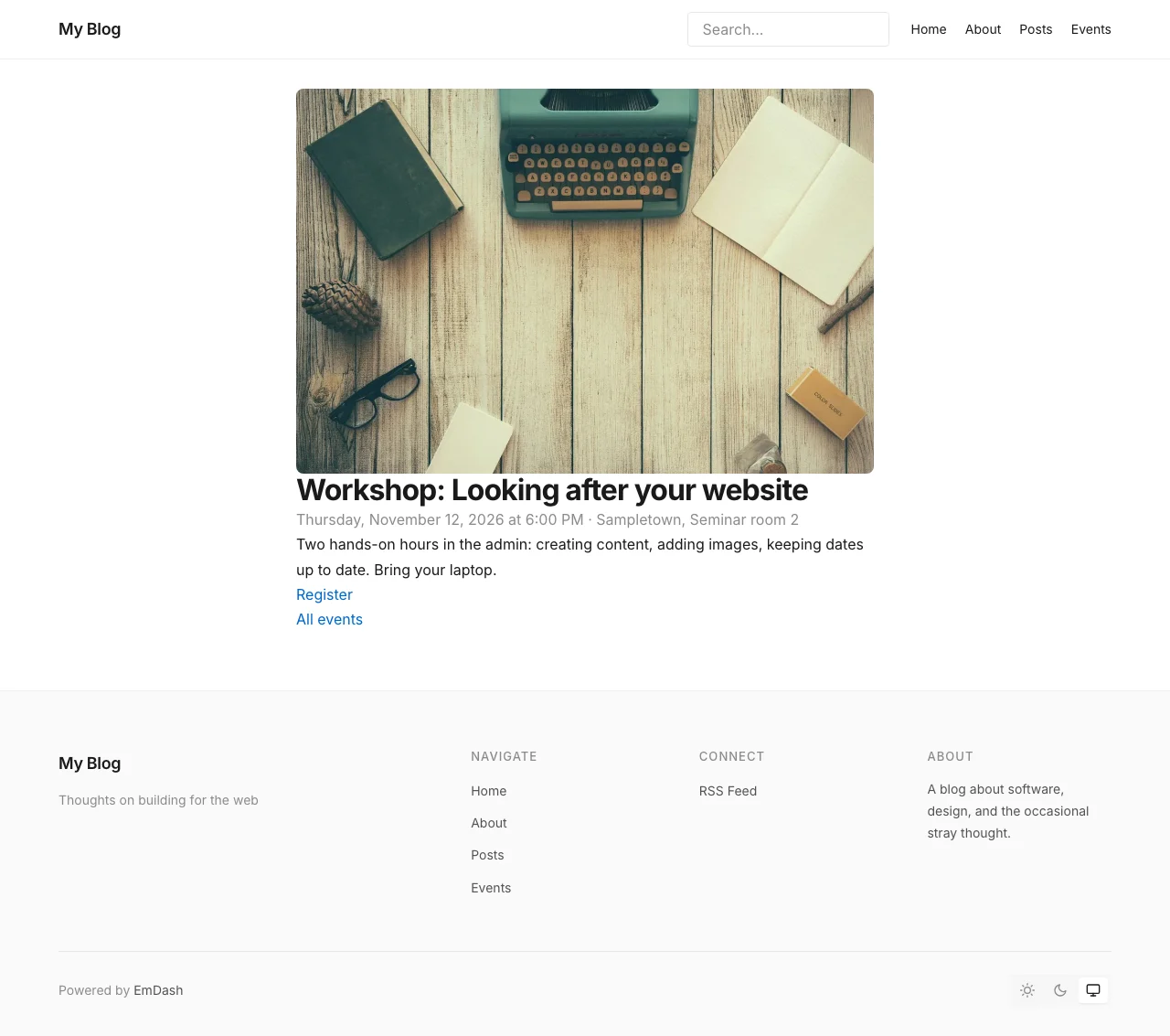
The sidebar now lists Events under Content. Create your first event there. I added a workshop on November 12 at 6:00 PM, filled in the location and summary, and used Select image to pick a photo from the media library. On the right, under URL & language, you set the slug, website-care-workshop in my case. Then Save, Publish now, and the event is live.
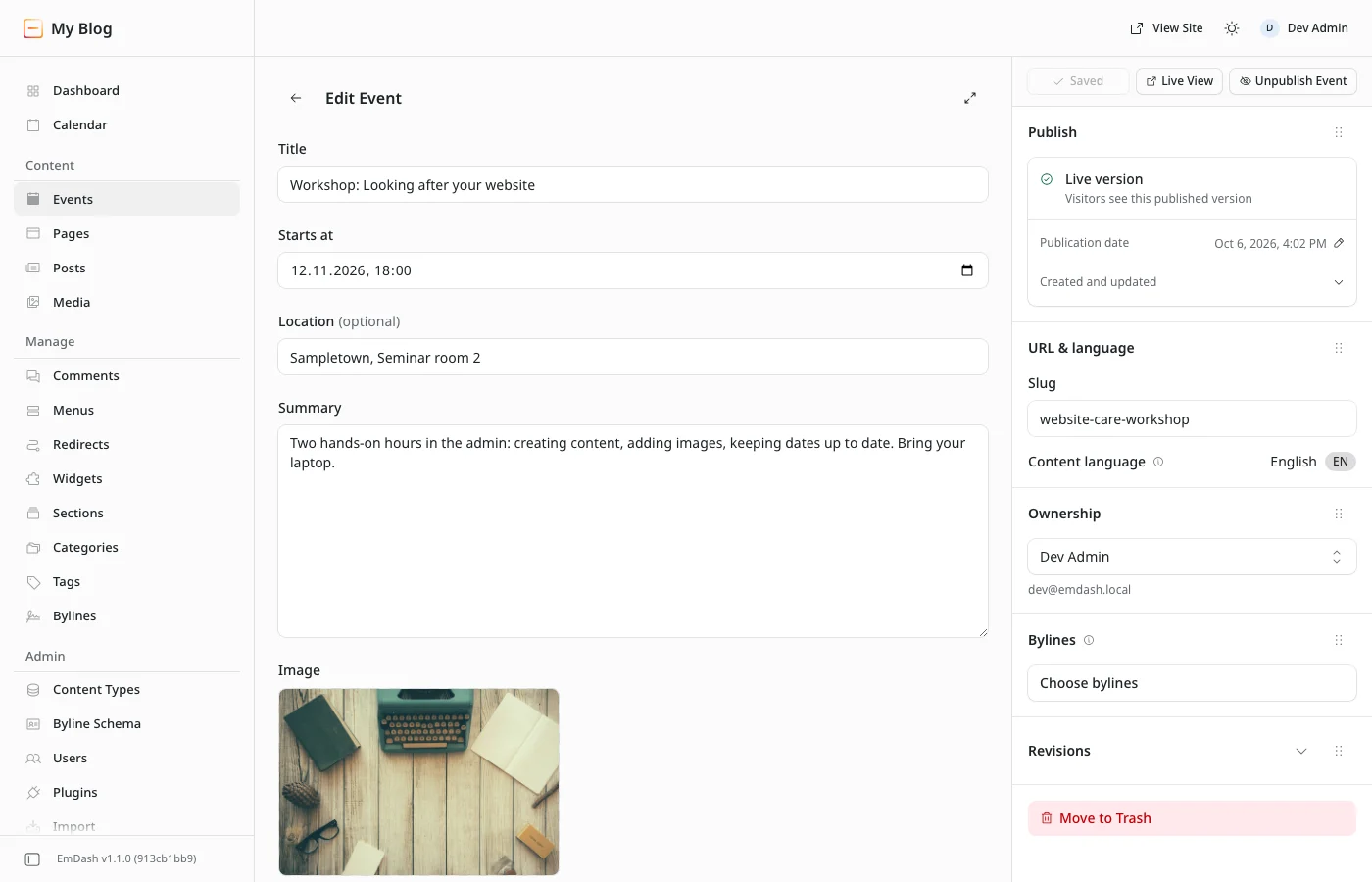
The second event is an open day on December 5. For testing I also added a summer party in July, so in the past. That one tells you straight away whether the filter on the overview page works.
If you open /events in your browser now, you'll still get a 404. The events are in the database, but no page displays them yet. Time for some code.
The overview page
Astro turns every file under src/pages into a URL. For the overview, create a folder src/pages/events with a file index.astro inside it. The two pages in src/pages/posts, which the blog template uses for its posts, make a good model.
---
import { getEmDashCollection, getSiteSettings } from "emdash";
import { Image } from "emdash/ui";
import Base from "../../layouts/Base.astro";

const now = new Date().toISOString();

const { entries: events, error, cacheHint } = await getEmDashCollection("events", {
	locale: Astro.currentLocale,
	where: { starts_at: { gte: now } },
	orderBy: { starts_at: "asc" },
});

if (error) {
	console.error("Failed to load events:", error);
	return new Response("Unable to load events", { status: 500 });
}

if (Astro.cache?.enabled) Astro.cache.set(cacheHint);

const { timezone = "UTC" } = await getSiteSettings();
const formatDate = (iso: string) =>
	new Date(iso).toLocaleString("en-US", {
		dateStyle: "full",
		timeStyle: "short",
		timeZone: timezone,
	});
---

<Base title="Events" description="All upcoming events">
	<div class="events-page">
		<h1>Events</h1>

		{events.length === 0 && <p>No upcoming events right now.</p>}

		<ul class="events">
			{events.map((event) => (
				<li class="event">
					{event.data.image?.id && (
						<Image image={event.data.image} class="event-image" />
					)}
					<div>
						<time datetime={event.data.starts_at}>
							{formatDate(event.data.starts_at)}
						</time>
						<h2>
							<a href={`/events/${event.id}`}>{event.data.title}</a>
						</h2>
						{event.data.location && <p class="location">{event.data.location}</p>}
					</div>
				</li>
			))}
		</ul>
	</div>
</Base>

<style>
	.events-page {
		max-width: var(--content-width);
		margin: 0 auto;
		padding: var(--spacing-8) var(--spacing-6) var(--spacing-16);
	}
	.events {
		list-style: none;
		padding: 0;
		display: grid;
		gap: var(--spacing-8);
	}
	.event {
		display: grid;
		grid-template-columns: 12rem 1fr;
		gap: var(--spacing-6);
		align-items: start;
	}
	.event :global(.event-image) {
		width: 100%;
		height: auto;
		border-radius: var(--radius-md, 8px);
	}
	.event time,
	.location {
		color: var(--color-muted);
	}
</style>
All the real work happens in that one query. getEmDashCollection takes the content type's slug and three options. where uses gte to keep every event whose start is at or after the current time. A plain string comparison is enough here, because EmDash stores every instant in UTC in the same ISO format that toISOString() produces. orderBy sorts by start time, ascending, so the next event comes first. In both cases you use the field's slug, not its label. The database does the filtering and sorting, helped by the index you turned on for Starts at.
locale: Astro.currentLocale looks pointless on a single-language site. Without an i18n config the value is undefined, which I checked, and EmDash falls back to the default locale. Once you add a second language, though, the page already asks for the right one. That's why we pass the locale on every query.
One thing surprised me while testing. If you mistype a slug, whether a field name in where or the content type's name, the query doesn't report an error. It just returns an empty list. So if your page stays empty even though events are published, compare the slugs in your code with the ones in the admin first.
The rest follows the template's pattern. error is only set for an actual failure, not for an empty result. The cacheHint goes to Astro's cache if caching is enabled. The page reads the timezone from the site settings, so it shows the same time your editors typed in. An image field holds an object with a media ID, dimensions and alt text, not a URL. That's why you check image?.id and render it with <Image> from emdash/ui, which also builds a srcset for different screen sizes.
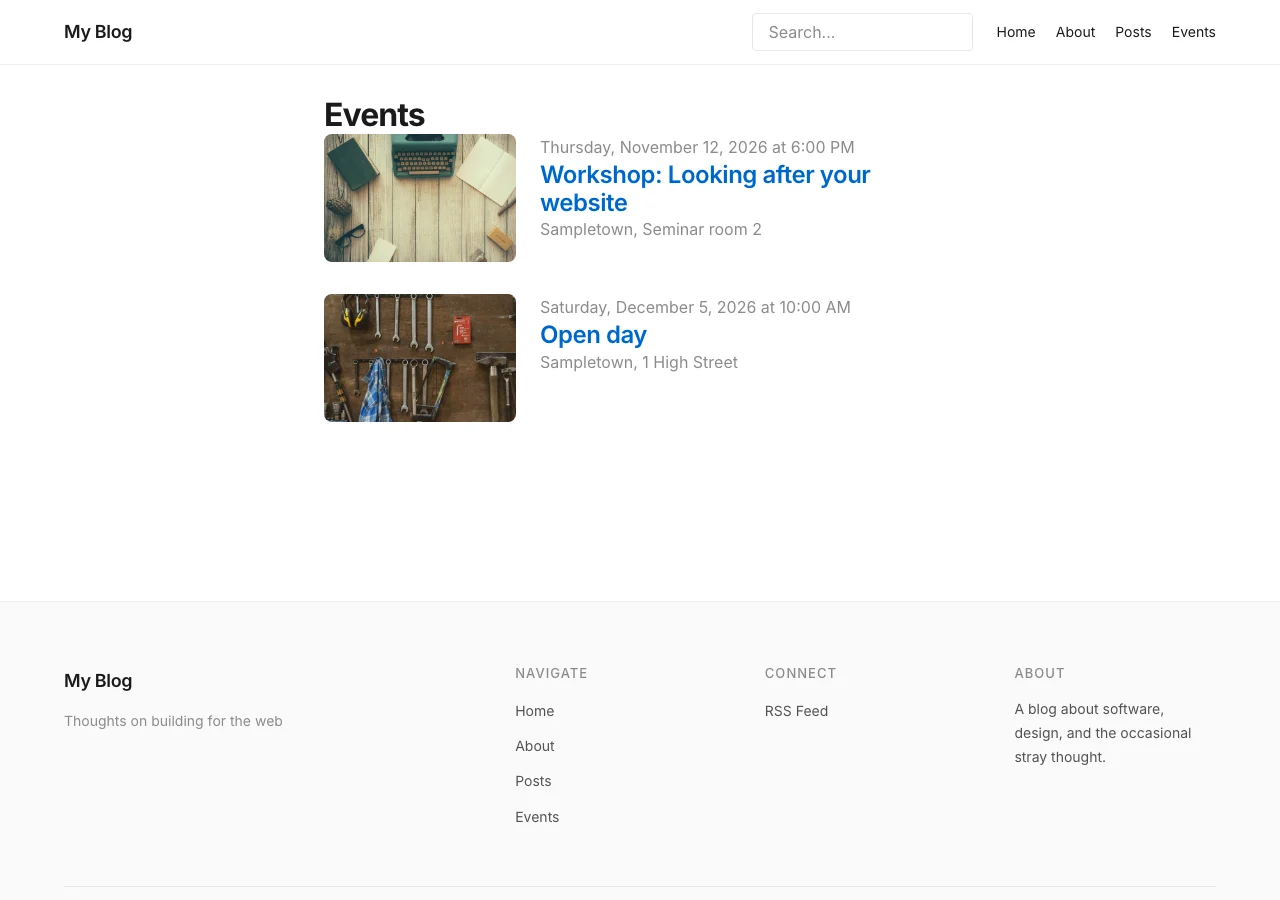
The link to the detail page uses event.id. In EmDash that's the entry's slug, exactly the part the URL needs. And the summer party from July doesn't show up on the overview, so the filter works.
The detail page
The titles on the overview now link to pages that don't exist yet. The second file goes into the same folder and is called [slug].astro. The square brackets tell Astro that this part of the URL varies, and your code receives it as Astro.params.slug.
---
import { decodeSlug, getEmDashEntry, getSiteSettings } from "emdash";
import { Image } from "emdash/ui";
import Base from "../../layouts/Base.astro";

const slug = decodeSlug(Astro.params.slug);
if (!slug) return Astro.rewrite("/404");

const { entry: event, error, cacheHint } = await getEmDashEntry("events", slug, {
	locale: Astro.currentLocale,
});

if (error) {
	console.error("Failed to load event:", error);
	return new Response("Unable to load event", { status: 500 });
}

if (!event) return Astro.rewrite("/404");

if (Astro.cache?.enabled) Astro.cache.set(cacheHint);

const { timezone = "UTC" } = await getSiteSettings();
const startsAt = new Date(event.data.starts_at).toLocaleString("en-US", {
	dateStyle: "full",
	timeStyle: "short",
	timeZone: timezone,
});
---

<Base
	title={event.data.title}
	description={event.data.summary}
	content={{ collection: "events", id: event.data.id, slug }}
>
	<article class="event-page">
		{event.data.image?.id && <Image image={event.data.image} priority />}
		<h1>{event.data.title}</h1>
		<p class="when">
			<time datetime={event.data.starts_at}>{startsAt}</time>
			{event.data.location && <> · {event.data.location}</>}
		</p>
		{event.data.summary && <p>{event.data.summary}</p>}
		{event.data.link && <p><a href={event.data.link}>Register</a></p>}
		<p><a href="/events">All events</a></p>
	</article>
</Base>

<style>
	.event-page {
		max-width: var(--content-width);
		margin: 0 auto;
		padding: var(--spacing-8) var(--spacing-6) var(--spacing-16);
	}
	.event-page :global(img) {
		width: 100%;
		height: auto;
		border-radius: var(--radius-md, 8px);
	}
	.when {
		color: var(--color-muted);
	}
</style>
getEmDashEntry fetches a single entry by its slug. If there's no match, the page answers with Astro.rewrite("/404") and the browser gets a 404 status. The template that npm create emdash downloads with 1.1.0 still uses Astro.redirect("/404") at this point, which first sends the browser on with a 302 before it lands on the 404 page. I use rewrite, as the docs on querying content do. The template in the EmDash repository has already been switched, and the downloaded version catches up with the next sync.
This is where you meet the second ID. Every entry has two, and they do different jobs. event.id is the slug you used for the link on the overview. event.data.id is the ULID, the permanent database ID that shows up as the "ID" system field on the content type page. The ULID stays the same when an editor changes the slug. That's why the layout's content prop gets the ULID, and helpers like getTermsForEntries expect it too. Use entry.id for URLs and entry.data.id for anything that needs to find an entry again later.
The detail page deliberately doesn't filter by date. The summer party is still reachable at /events/summer-party, so old links keep working. I output the summary as plain text. If you want paragraphs, lists or links in it, make the field Rich Text and render it with <PortableText> from emdash/ui.
Add it to the menu
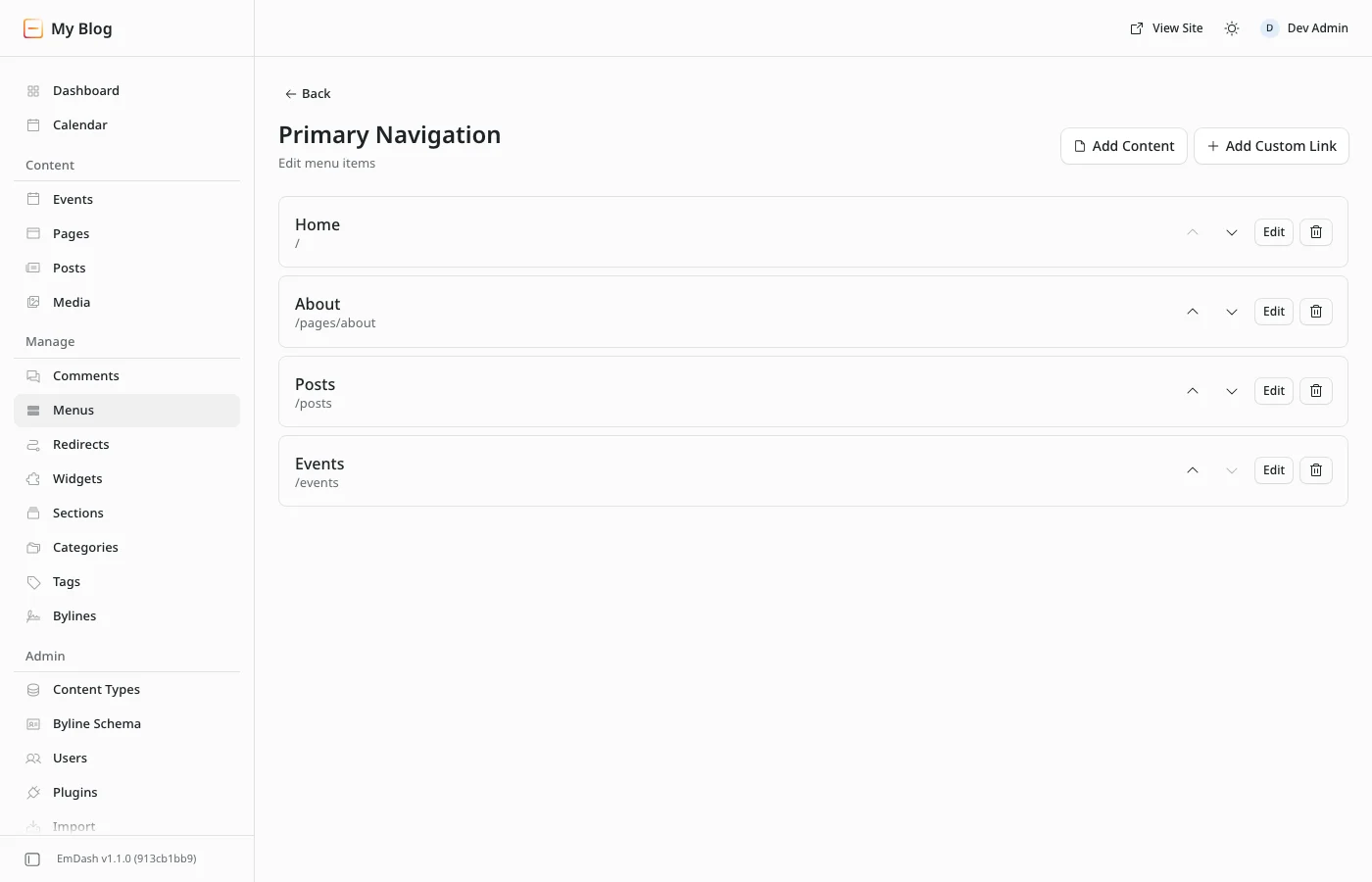
The pages are there, but nobody can find them yet. You manage the blog template's menu in the admin under Menus. Open Primary Navigation with Edit and choose Add Custom Link. Enter "Events" as the label and /events as the URL, then click Add. The item is saved right away and shows up in the template's header and footer. Add Content is the wrong button here, because it links a single entry rather than the overview.
Shipping it: admin first, then code
Everything works locally now. Your live site doesn't know about the content type yet, though, because EmDash keeps content types and fields in the database, not in your code. What you created locally lives in your local database and doesn't travel with a deploy. The background, including what seed/seed.json does and doesn't do, is in the admin article. For this project, that gives you the following order:
- In the live site's admin, create the content type with the same slugs and switches, meaning
eventsand the six fields from the table, and set the timezone. - Then merge the two pages. Include
emdash-env.d.tsin the commit. The dev server rewrote it when I added the fields, and since then TypeScript knows theEventtype withstarts_atand all the other fields. - Your editors can enter events as soon as step one is done. Nobody sees them until the pages exist.
- Add the menu item last, once
/eventsis online.
I tried what happens if you get the order wrong. A query for a content type that doesn't exist doesn't throw. It returns an empty list. The overview then says "No upcoming events right now", and every detail page ends in a 404. Nothing breaks, but there's an empty page online, and a menu link sends your visitors straight to it.
One more thing if you turn on Astro's cache. The template only passes the cacheHint along. Nothing gets cached until you configure a cache provider and a cache lifetime for the route. Once you have, publishing, editing or deleting an event in the admin tells the cache, and it drops the stored pages for your events. That's what the EmDash 1.1.0 source does, and it works the same for Astro's memory cache and for Cloudflare's. An event that has started doesn't trigger anything, though. I recreated this with a test event that started two minutes after the first request. With a one-hour cache lifetime it was still on the overview after it had started, while the uncached page had already dropped it. So keep the cache lifetime for /events short enough that past events don't linger. How to set up the cache on Cloudflare is in edge caching EmDash on Cloudflare.
Conclusion
Back to the question from the start. The code that puts a new collection on your site is two Astro pages. The overview uses getEmDashCollection to fetch every upcoming event, filtered and sorted in the database. The detail page uses getEmDashEntry to fetch one event by its slug. That's all it takes, as long as three things hold. The slugs in your code have to match the ones in the admin exactly, because a typo doesn't fail loudly, it just gives you empty lists. Use entry.id for links and entry.data.id for lasting references. And on a live site, create the content type in the admin first and merge the code after.
With events, you've now been through the whole pattern once. Whether you build projects, recipes or a team directory next, the steps stay the same.

Comments
No comments yet
First-time comments appear once we've approved them. How we handle your details